
Manual version: 1.0 | Date: 07/10/2016 | App version: 20+
Table of Contents
- Introduction
- What is Estoque & QRCode?
- Who is the app for?
- Essential concepts
4.1 Supply/raw material
4.2 Product
4.3 Recipe
4.4 Production
4.5 Purchase
4.6 Inventory
4.7 Units of measure
4.8 Alerts - Interface and navigation
5.1 Home screen
5.2 Main modules
5.3 Action buttons - First steps
6.1 Before you start: gather your data
6.2 Registering raw materials
6.3 Registering products
6.4 Registering recipes
6.5 Production
6.6 Purchases - Standard procedure to add, edit, and delete records
- Inventory and QR Code
- Reports, alerts, and decision-making
- Recommended routines
- FAQ and troubleshooting
- Glossary
- Support
Appendix A — Segments and activities served
Appendix B — Unit and conversion checklist
1. Introduction
This manual aims to teach, simply and practically, how to use the Estoque & QRCode app to control supplies, products, recipes, production, and purchases.
Welcome to Estoque & QRCode, an inventory control app for small entrepreneurs. If you do not know the Android app, download it at:
https://play.google.com/store/apps/details?id=com.estoqueqrcode.helcio
1.1 Learning curve
Like any app, Estoque & QRCode requires an adaptation period to learn where to tap, what features exist, and what results to expect. This learning curve can be very short if you study this manual.
1.2 How this manual is organized
The manual presents a simple, summarized step-by-step process to enter data, interpret information, and extract results. We use a sample activity to make the tutorial easier. Just adapt the process to your reality.
The app is intuitive; most buttons have clear names, and the top menu uses easily recognizable icons.
2. What is Estoque & QRCode?
It is an app structured to help small entrepreneurs maintain inventory control more easily, with data for better decision-making and alerts.
Estoque & QRCode allows you to register supplies and manufactured products, culinary preparations, crafts, and more. It is adaptable to many activities so users can maintain smart, useful inventory control for decision-making.
3. Who is the app for?
Estoque & QRCode was developed for small entrepreneurs, self-employed workers, producers, manufacturers, artisans, merchants, salespeople, and service providers who need to control products, raw materials, supplies, materials, purchases, and production simply using a mobile phone.
It is especially useful for those who buy materials, transform supplies into products, keep goods for sale, or need to know how much they can still produce.
The complete list of segments and activities served is in Appendix A.
4. Essential concepts
4.1 Supply/raw material
It is the component used to produce, manufacture, assemble, or provide a service. Examples: flour, thread, wood, paint, glue, pipes, fittings.
4.2 Product
It is the item manufactured, transformed, or resold. Examples: cake, crochet doll, children’s mini kitchen, hot dog, hot dog and soda kit.
4.3 Recipe
It is any production method that involves known quantities of raw materials. It can also represent cooking, manufacturing, or service provision.
4.4 Production
It is the record of manufacturing a product. When production is registered, the system updates the raw material and product inventory available for sale.
4.5 Purchase
It is the entry of items into inventory. It can be a purchase of raw materials or ready-made products for resale.
4.6 Inventory
It is the available quantity of supplies and products. Inventory is updated by purchases, production, sales, adjustments, losses, and returns.
4.7 Units of measure
It is essential to register and convert units correctly: kg, g, mg, liter, ml, meter, cm, m², unit, box, pack, etc.
Conversion table in the appendix.
4.8 Alerts
The app can issue alerts when supplies are missing for planned production or when inventory falls below the minimum.
The minimum raw material inventory is set at 10% to trigger the alert. This avoids configuring raw material item by item.
5. Interface and navigation
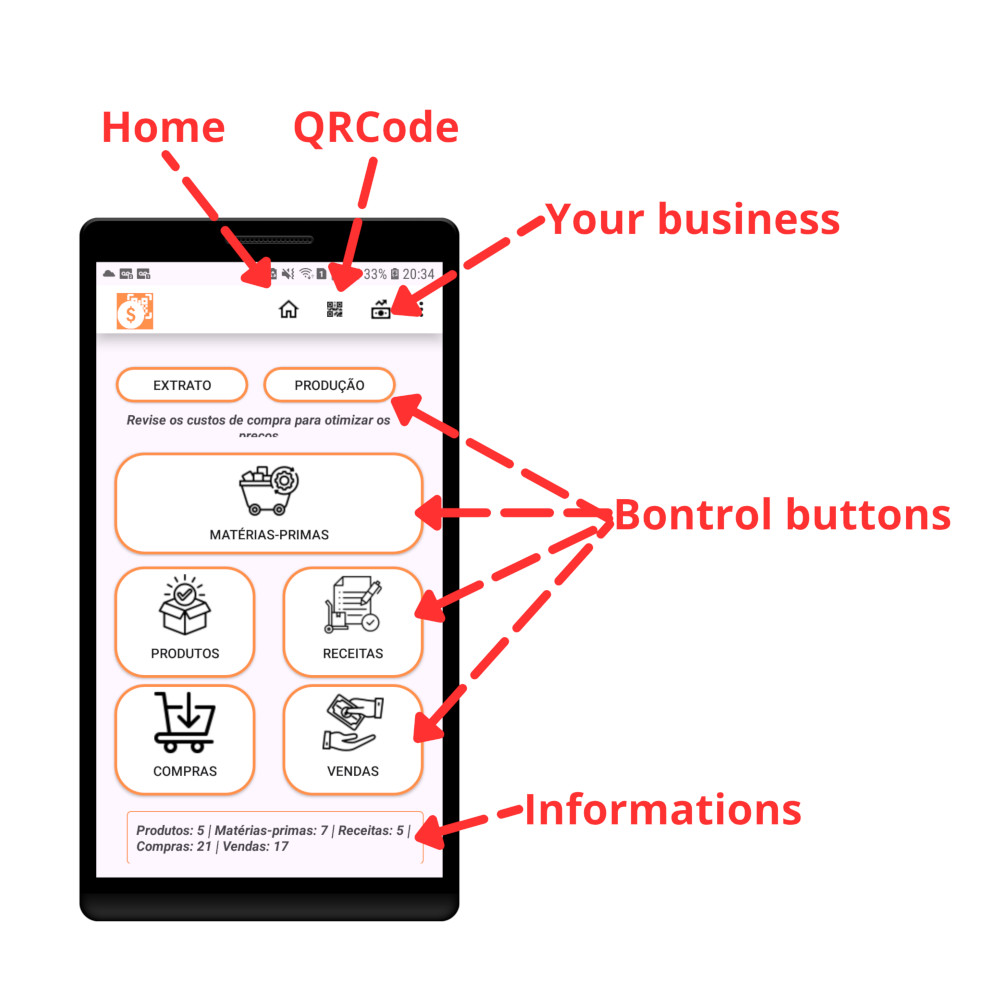
5.1 Home screen
The home screen is organized so modules are always accessible with one tap, without unnecessary effort.
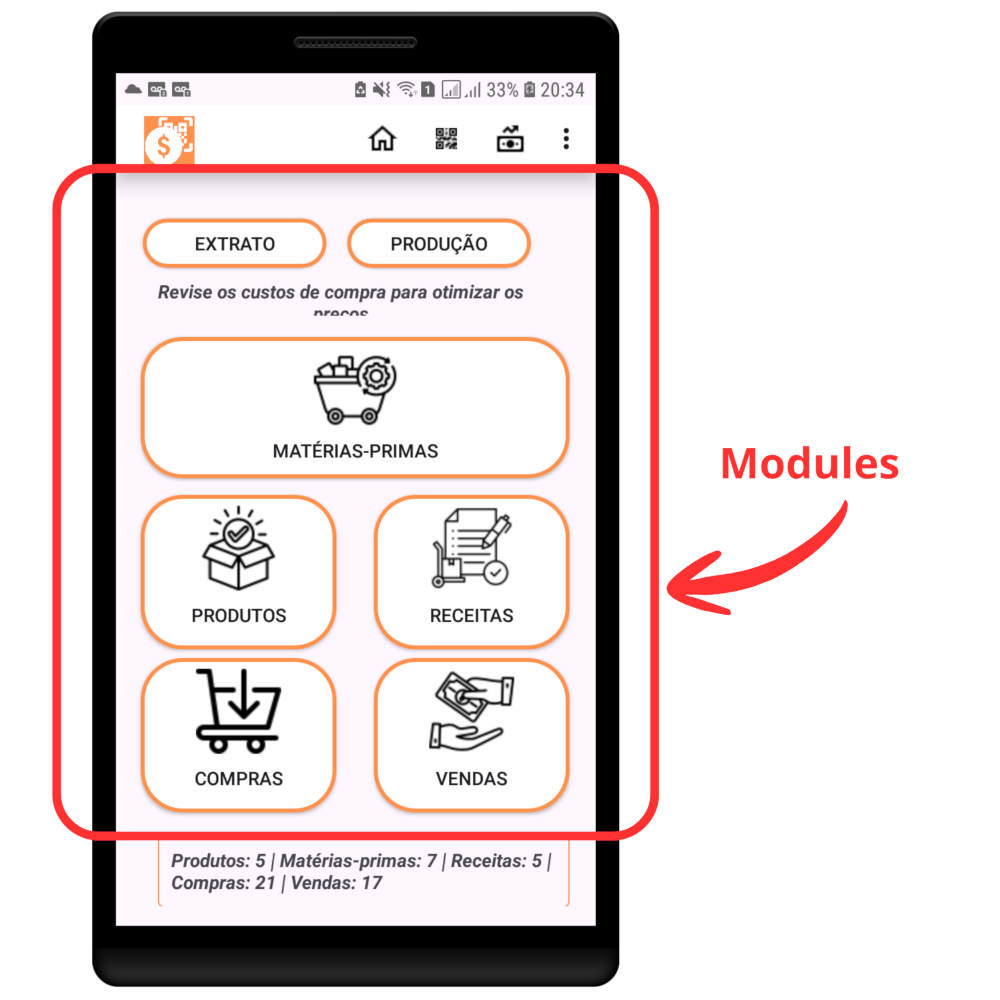
5.2 Main modules
The main modules are:
- Supplies
- Products
- Recipes
- Production
- Purchases
- Inventory
- QR Code
- Reports
- Settings
5.3 Action buttons
For safety, data manipulation buttons are at the bottom of the screen. Depending on your device, just drag the screen upward.
The top area of the screen is reserved for the list of registered items.
6. First steps
6.1 Before you start: gather your data
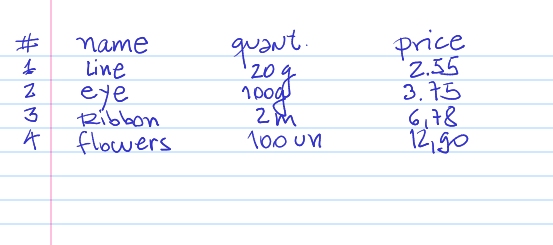
Make a list of the raw materials you use to work, manufacture the items you sell, or provide services. Note:
- Supply name
- Description: brand, model, manufacturer, etc.
- Standard quantity sold
- Unit: kg, g, meter, cm, unit, etc.
Pay attention to units, because it is with them and the quantities used in recipes that we get accurate results.
Then make a list of the products you manufacture and sell. They are usually measured by unit, weight, or volume.
6.2 Registering raw materials
Raw material is the most sensitive component of the business because it cannot stay in stock for too long. Ideally, the quantity should enter and leave as quickly as possible.
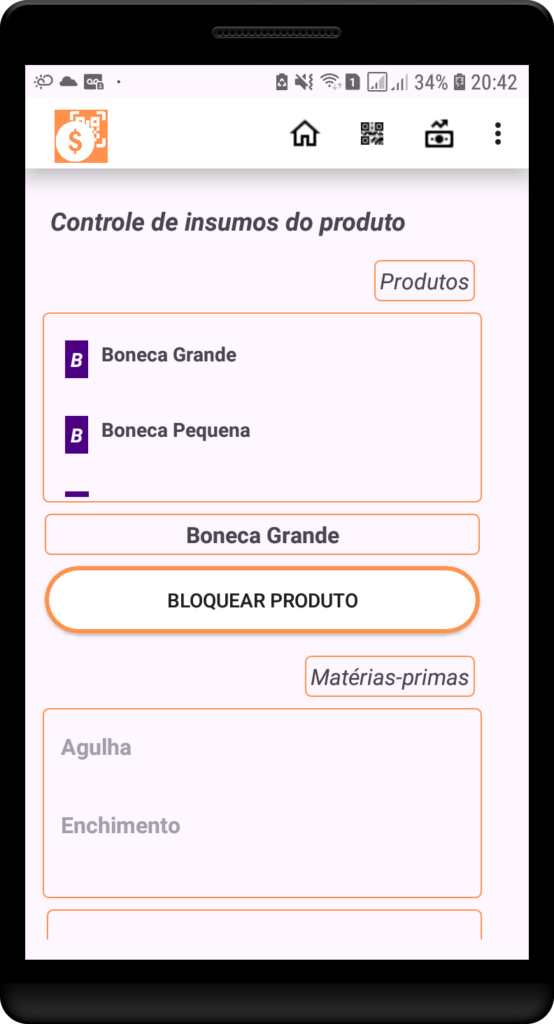
In the app, the Supplies module is highlighted in the middle of the device screen. Tap it.
To register:
- Scroll up to access management.
- Tap the Insert button.
- Enter the supply name.
- Enter a description: brand, model, manufacturer, etc.
- Enter the standard quantity sold and the unit.
- Tap Confirm to save.
Register all items used to make your products.
Example: a crochet doll artisan should note threads, ribbons, eyes, fabrics, according to quantities and units. Some thread spools are measured by weight; others by meters. In that case, establish how much in that unit will be consumed to produce one doll.
6.3 Registering products
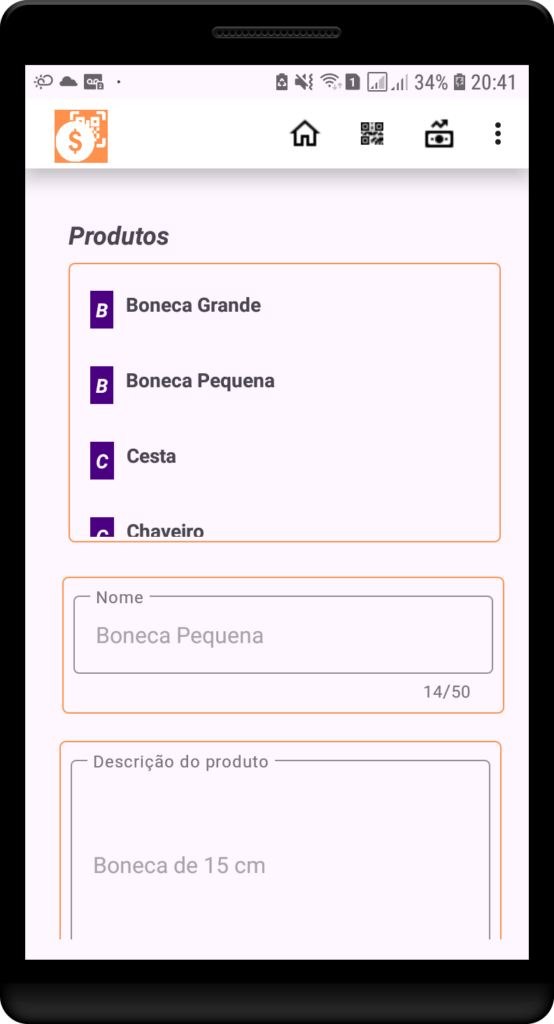
The process is similar to registering supplies. Scroll up, tap Insert, enter the product name and description. Tap Confirm. Repeat for all your products.
Example: a small hot dog vendor has products such as: hot dog, hot dog and soda kit, sauces, etc. Although the kit contains the hot dog together with the soda, you should register only the hot dog and, in another record, the kit.
6.4 Registering recipes
First, we define a recipe as any production method that involves known quantities of raw materials. A recipe here is also manufacturing, cooking food, and a method of providing a service. For example, a plumber who serves homes has as raw material the material consumed: tapes, washers, pipes, fittings, glues, etc.
To register recipes, products and supplies must already be registered. It is important to understand quantities and measurements in the process.
Imagine that a recipe uses two tablespoons of sugar. It is a relative measure, because there may be more or less sugar depending on haste, the cook’s attention, etc. Ideally, measure the quantity and convert it to the same unit as the package. If the package unit is kg, then how many kilograms of sugar are in each spoon?
Adjust the units for all supplies in the recipe.
Example: a carpenter builds a mini kitchen as a children’s toy. The quantities of raw material items that follow a logical sequence form the recipe for the product Mini Children’s Kitchen.
| Item | Required | How to register in the app |
|---|---|---|
| Wood | 120 cm² | 0.012 m² |
| Paint | 15 g | 0.015 kg |
| Glue | 5 g | 0.005 kg |
| Packaging | 1 unit | 1 unit |
| Product | 1 Mini Children’s Kitchen | — |
Note that units must correspond to the raw material units. Every time you manufacture a product and register that production in the app, the system will update the raw material inventory accurately.
6.5 Production
The Production module is important for updating raw material and product inventory available for sale.
Tip: in dynamic systems where production does not allow storage, such as snacks, pizzas, and services, you can estimate the products needed, register the estimated production, and correct it after the shift.
Example: a snack bar estimates selling one hundred fifty hot dogs. When registering the hot dogs, if inventory is up to date, the app will check quantities. If supplies are missing, the app will issue an alert. This phase is called planning and serves for a quick inventory check and for recording product output.
For recording after production and sale of products, this adjustment can be considered output, updating inventory in the same way.
Tip: it is better to plan production to check availability and avoid surprises with missing items.
6.6 Purchases
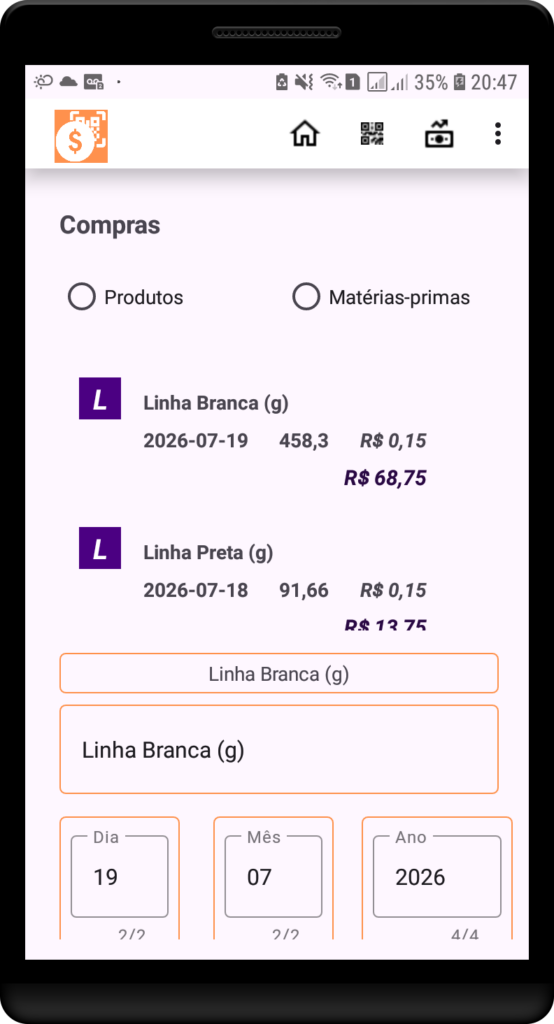
When buying items for production or ready-made products, there is an entry into inventory. The Purchases module allows you to select between raw material and ready-made products for resale, such as beverages and sauce sachets for snack bars, ready-made giveaways for cake makers on holidays, or replacement parts sold by an air-conditioning technician.
How to register a purchase:
- Select the item type. If it is a ready-made product, it must already be registered as a product.
- In the middle of the screen, the name of the first product will appear. If you tap the second text box with the product name, a list of all registered products will open.
- Select the product to be registered as a purchase.
- Tap the Insert button.
- Enter the date, quantity, and unit.
- Tap Confirm to register the purchase.
Inventory is automatically updated, and the product is included in the list.
When selecting Raw material, a list of raw materials will appear highlighted. Repeat the process to add it.
To correct data, use the standard procedure in section 7.
7. Standard procedure to add, edit, and delete records
To avoid repetition, this procedure applies to supplies, products, recipes, purchases, production, and other records.
Add
- Scroll up.
- Tap Insert.
- Fill in the fields.
- Tap Confirm.
Edit
- Select the button for Products or Raw materials.
- Tap the item to correct.
- Tap Edit.
- Make the corrections.
- Tap Confirm.
Delete
- Follow the same process as editing.
- Tap Delete.
- Confirm deletion.
Attention: if the item is used in recipes or has been used in previous data, deletion will not be possible.
8. Inventory and QR Code
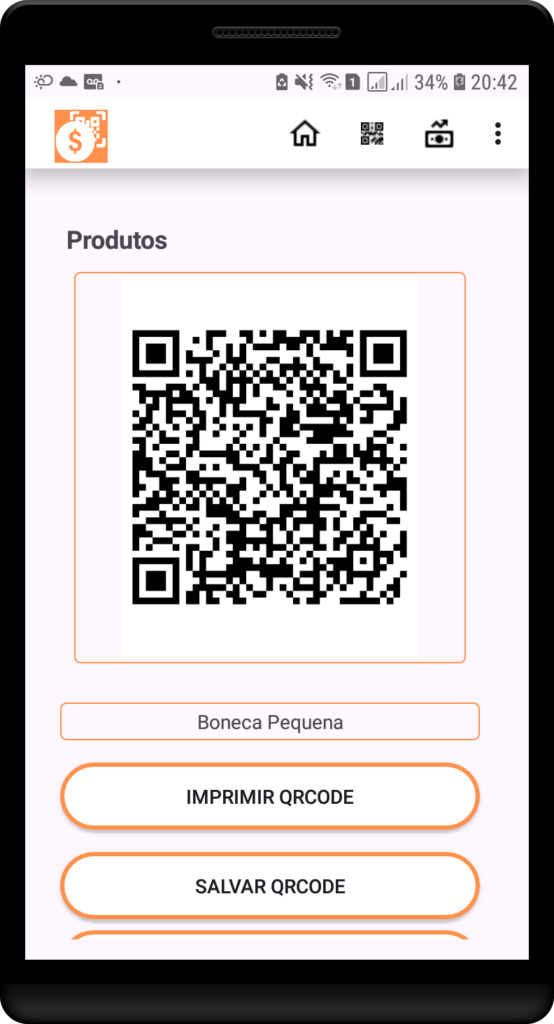
- How to generate a QR Code for supplies, products, batches, or shelves.
- How to print labels.
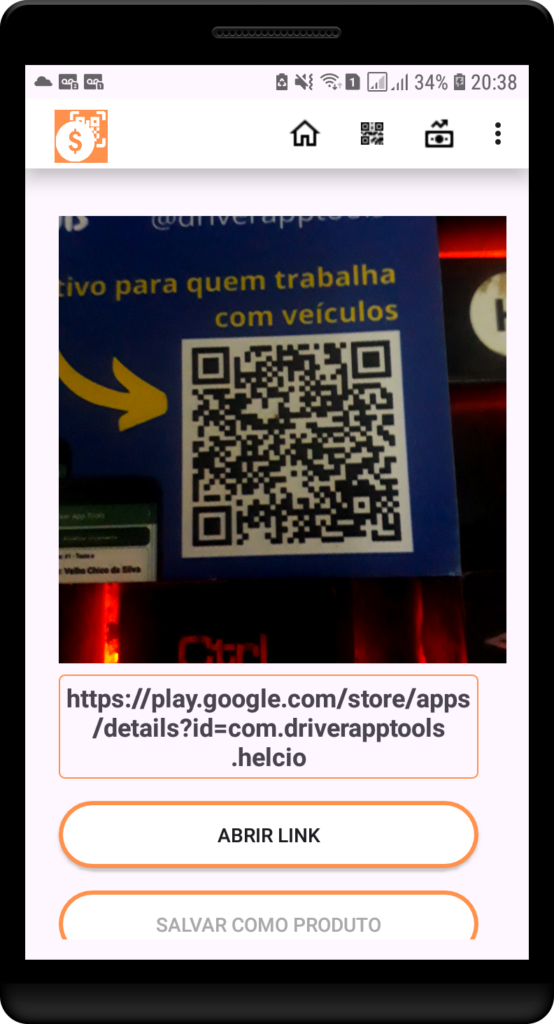
- How to scan a QR Code to consult, receive, issue, or produce.
- How to link a QR Code to recipes, expiration date, and batch number.
- How to use QR Code in inventory and quick counting.
- How to fix an unrecognized QR Code.

9. Reports, alerts, and decision-making
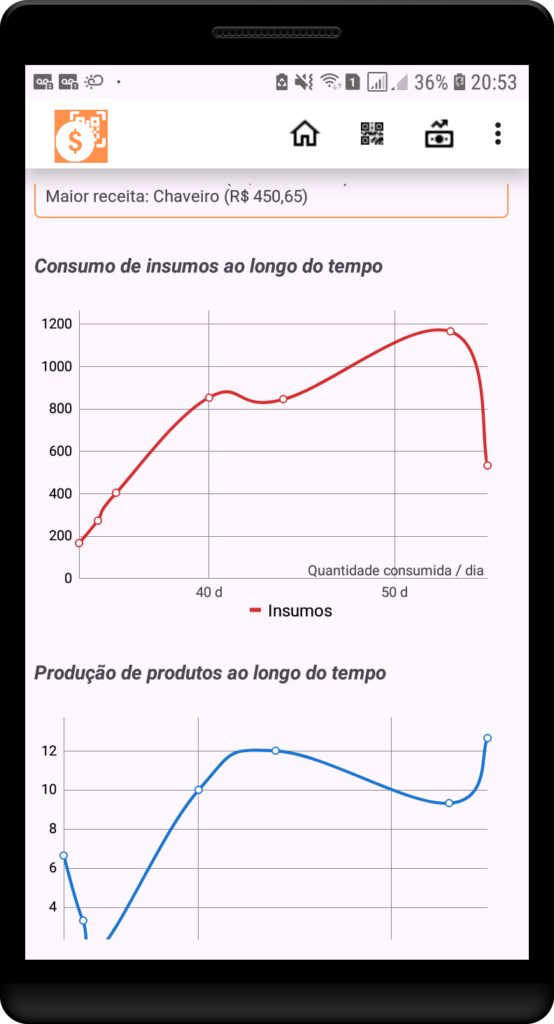
- Inventory position.
- Supply consumption.
- Production by period.
- Purchases made.
- Products with low inventory.
- Purchase forecast.
- Average cost.
- Losses and adjustments.
- Movement history.
10. Recommended routines
10.1 Before buying supplies
Check inventory, simulate the production record you have in mind for the work period, and verify whether there is enough raw material. If everything is registered correctly, the information about what to buy will be much more accurate.
10.2 Before producing
Check supply availability and register planned production.
10.3 After the shift
Adjust estimated production to actual production and register outputs.
10.4 Periodically
Take inventory, check units, correct discrepancies, and review minimum inventory levels.
11. FAQ and troubleshooting
Why can’t I delete a supply?
This happens when a supply is registered in a recipe or in previous purchases. Deleting an item already registered and used in any recipe causes calculation errors, showing incorrect financial values. It is easier to keep the item and register the new item in a new recipe.
Why did the app alert about low inventory?
This happens when the supply quantity reaches 10% of the initial quantity of each purchased package. It does not mean there is no supply for production. There may still be enough to make many products. For example, a snack vendor receives an alert for low mustard sauce sachet inventory. If the alert is at 10% and a box contains 500 sachets, it is still possible to serve 50 snacks with mustard sauce.
How do I correct a wrong unit?
Select the product or raw material with the wrong unit. After selecting the item to correct, tap Edit, change the unit data, also review the quantity calculation, and tap Confirm.
How do I register estimated production?
Production is considered anything that has been manufactured, made, cooked, etc. Registration depends on the business dynamics. For example, a small snack bar produces according to orders, so it is recommended to register production at the end of the shift, the next day, etc. An artisan can register production of one piece or several at the end of the production stage. The app does not specify the exact moment to register.
The estimate relates to the moment before producing with a function. When trying to register production, the system checks whether there is enough raw material in inventory to meet demand. This is when the user benefits from a system correctly fed with accurate data. If any item is missing, the system informs the quantity and what is missing to meet the planned production. This speeds up replenishment and decision-making.
How do I record a purchase of a ready-made product?
Simple! Just select Product in the buttons in the Purchases module, select the previously registered product in the product name field, scroll up until you see the Insert button. Tap it and enter the date, quantity, unit, and after checking the data, tap Confirm.
IMPORTANT: Ready-made products are everything the entrepreneur resells that does not go through manufacturing, cooking, modeling, etc. For example: soft drinks, sachets, bags of snacks, giveaways, ready-made parts from another manufacturer, etc. If any product does not need a production recipe, it is a ready-made product.
Does the app work offline?
Yes! The entire database and features are on the mobile device.
How do I back up?
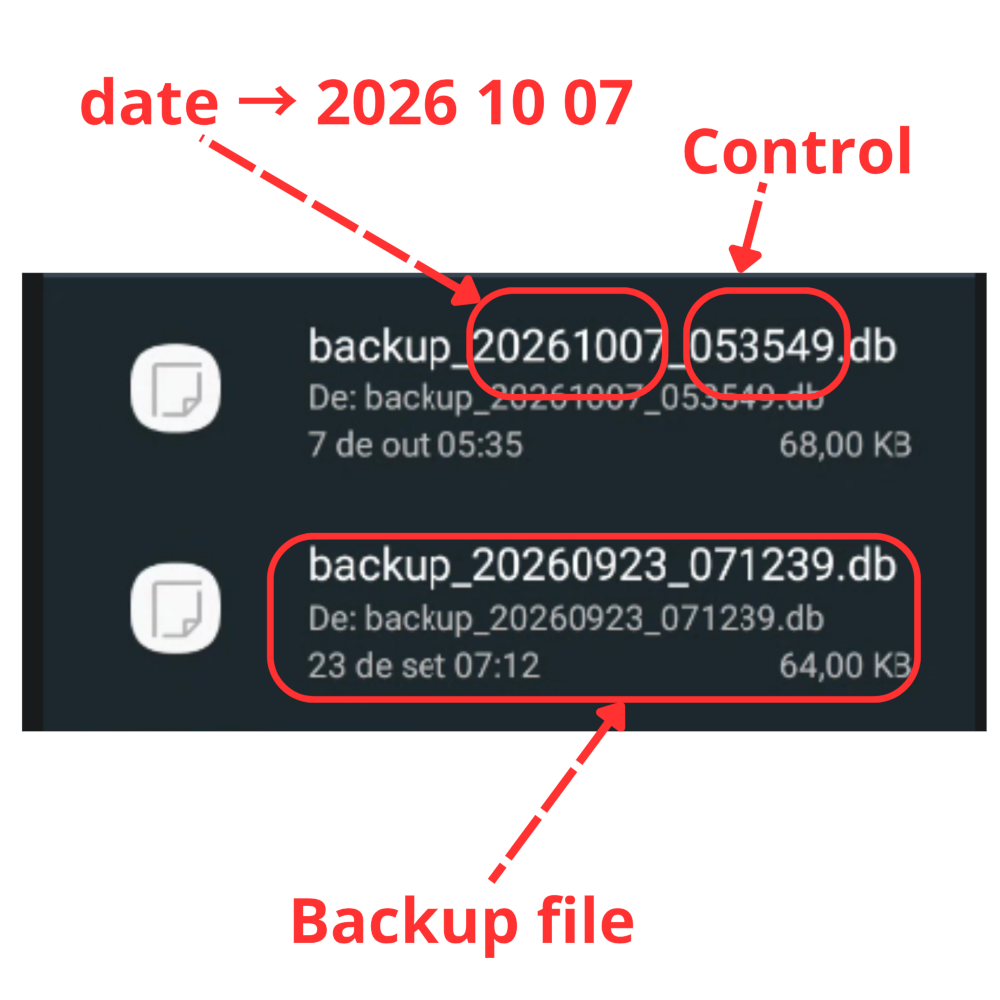
Simple! Look for Settings in the menu indicated by the three dots or three lines and tap the Backup button. The system does everything automatically. It is recommended to find where the backup file is stored and copy it to another safe location.
Because there are countless devices with different and adapted Android OS versions, there is no single path for saving the backup file. Each device and version has a location where saving is allowed. With a little patience, check My Files, Downloads, etc.
Backup files are saved in the following format: backup_date_control.db
The date in the file name follows the format: year+month+day.
How do I change decimal places?
Some activities work entirely in units, others with one decimal place, and some with more than two. The Estoque & QRCode app works with two decimal places, but there are moments when products may show decimal values. This happens when decimal values are entered when registering supply quantities. In some cases, production yields more than planned, especially in crafts, food, etc. It is recommended to observe the quantities in produced units and compare them with the values shown. A product quantity may appear as 3.67, but the count is 4 products. Or a quantity of 10.35 for 10 products.
Because the app is open to various activity areas involving many forms of production, supply quantities, and production, it is best to leave everything with two decimal places and let the responsible user interpret it according to their experience.
How do I contact support?
Send an email to: estoque.qrcode@gmail.com
12. Glossary
- Supply: raw material or material used in production.
- Product: item manufactured, transformed, or resold.
- Recipe: technical sheet with supply quantities.
- Production: manufacturing record.
- Purchase: entry of items into inventory.
- Minimum inventory: minimum quantity before the alert.
- QR Code: two-dimensional code for quick identification.
13. Support
Send an email to: estoque.qrcode@gmail.com
Appendix A — Segments and activities served
Food, confectionery, and beverages: cake makers; confectioners; sweet makers; gourmet brigadeiro makers; savory snack makers; meal-prep cooks; cooks; bakers; pizza makers; pastry makers; artisan burger makers; snack vendors; frozen food manufacturers; pasta makers; ice cream makers; popcorn makers; jam and preserve makers; preserve producers; artisan food producers; seasoning producers; sauce producers; natural product producers; sausage and linguica makers; butchers; fishmongers.
Crafts and handmade work: artisans; crochet makers; knitters; embroiderers; lace makers; weavers; seamstresses; tailors; bag makers; wallet makers; backpack makers; textile article makers; sewing notion makers; non-electronic toy makers; jewelry artisans; wood artisans; leather artisans; ceramic artisans; paper artisans; plastic artisans; glass artisans; metal artisans; cement artisans; plaster artisans; rubber artisans; bamboo artisans; cork artisans; stone artisans; artisans using various materials; candle makers; soap makers; souvenir makers; custom product makers; custom stationery; bookbinders; laminators; screen printers; stampers; stamp makers.
Clothing and fashion: seamstresses and tailors; tailors; fashion designers; clothing manufacturers; custom clothing makers; clothing customizers; clothing printers; screen printers; bag makers; shoe makers; cobblers; accessory makers; textile artisans; weavers; embroiderers; lace makers; leather goods makers; clothing article makers.
Carpentry, furniture, and manufacturing: carpenters; furniture makers; custom furniture makers; metal furniture makers; carpenters; installer carpenters; wooden artifact makers; MDF makers; decorative object makers; shelf makers; table makers; chair makers; toy makers; upholsterers; tapestry makers; saddle makers; barrel makers.
Repairs, workshops, and maintenance: automobile mechanics; motorcycle mechanics; automotive electricians; residential electricians; plumbers; hydraulic pump technicians; maintenance technicians; computer maintenance technicians; appliance maintenance technicians; telephone maintenance technicians; electronics technicians; IT technicians; cell phone technicians; cell phone repairers; computer repairers; appliance repairers; locksmiths; tire repairers; auto body repairers; auto painters; welders; metalworkers; lathe operators; tool and cutlery sharpeners; antenna installers; equipment installers; security system installers; plasterers; tile setters; wall painters; gutter installers; roofers; masons; carpenters; general installers.
Beauty and personal care: hairdressers; barbers; manicurists; pedicurists; nail designers; makeup artists; eyebrow designers; estheticians; hair removal specialists; braiders; lash designers; massage therapists; tattoo artists; pet groomers; pet estheticians.
Appendix B — Unit and conversion checklist
[Insert table:]
| Purchase unit | Use unit | Conversion |
|---|---|---|
| 1 kg | 1,000 g | multiply by 1,000 |
| 1 g | 0.001 kg | divide by 1,000 |
| 1 m | 100 cm | multiply by 100 |
| 1 cm | 0.01 m | divide by 100 |
| 1 m² | 10,000 cm² | multiply by 10,000 |
| 1 cm² | 0.0001 m² | divide by 10,000 |
| 1 L | 1,000 ml | multiply by 1,000 |